Cinematic Action Hero AI Video Prompt – Exploding Car Walk in Slow Motion
Cinematic action scenes are known for their powerful visuals, dramatic timing, and unforgettable hero entrances. One popular concept features a stylish man walking confidently toward the camera while a car explodes behind him. The character remains calm and never looks back, creating a striking contrast between his controlled movement and the explosive action in the background.
With AI video generation, creators can experiment with this action-movie concept without filming a physical explosion or arranging a professional movie set. A carefully written prompt can describe the character, outfit, camera movement, lighting, explosion, smoke, sparks, and overall cinematic appearance. The result depends on the video-generation tool and its interpretation of the instructions, but a structured prompt provides a useful starting point.
In this guide, we explore the Cinematic Action Hero AI Video Prompt, explain its important visual elements, and show how to create a similar video using Flow AI.
What Is a Cinematic Action Hero AI Video Prompt?
A cinematic action hero AI video prompt is a detailed description that guides an AI video-generation model toward a particular action-movie scene. Rather than simply asking for a man walking near an exploding car, the prompt describes the character's appearance, clothing, movement, background action, lighting, and camera style.
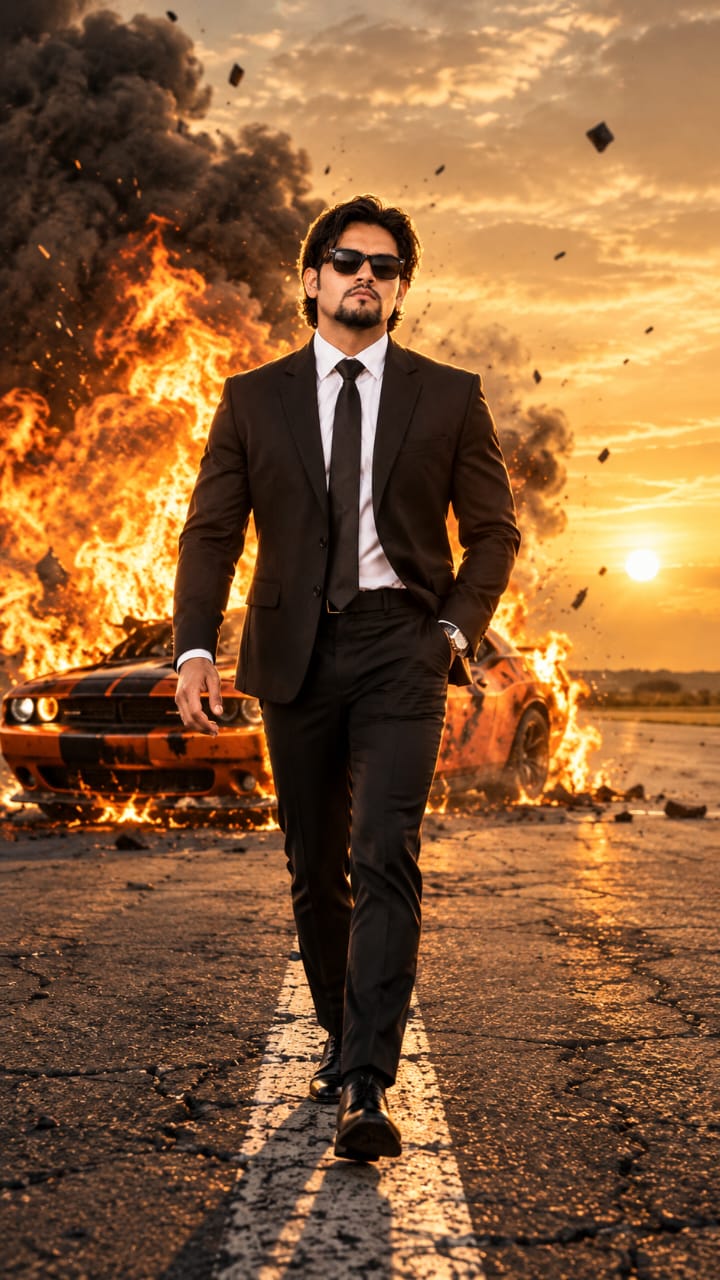
The goal is to create a cohesive cinematic moment. The hero walks toward the camera in slow motion while the orange muscle car explodes behind him. Fire illuminates the scene, dark smoke rises into the sunset sky, and sparks and debris contribute to the dramatic atmosphere.
The character's calm expression and steady movement are essential to the concept. He adjusts his suit button with one hand and continues walking without looking back. Meanwhile, the explosion creates a powerful visual contrast in the background.
This style can be useful for AI filmmaking experiments, action-themed social media videos, cinematic character introductions, and creative video-editing projects.
Key Features of the Exploding Car Hero Scene
1. A Distinctive Main Character
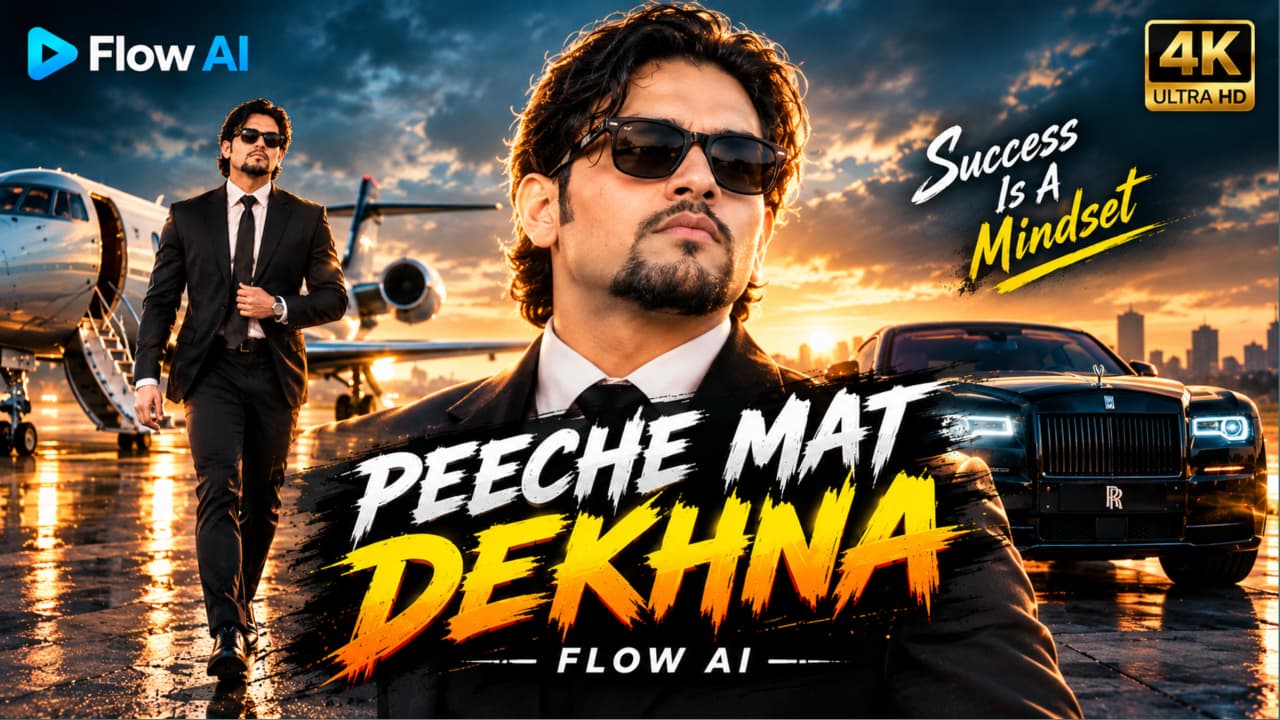
The character's appearance establishes the visual identity of the scene. The prompt specifies medium wavy black hair, a trimmed goatee, black Wayfarer sunglasses, a black suit, a white shirt, and a slim black tie.
These details should remain consistent throughout the clip. If the video begins with one hairstyle or outfit and changes halfway through, the cinematic illusion can become less convincing. Repeating essential appearance details and using a suitable starting image, when supported, may help guide the result.
2. A Confident Slow-Motion Walk
The hero walks directly toward the camera with a calm, controlled posture. One hand adjusts the suit button as he moves. His eyes remain hidden behind sunglasses, and he never turns around to watch the explosion.
Slow-motion movement gives the scene a deliberate rhythm. Instead of rushing through the action, the video allows viewers to notice the character's expression, outfit, posture, and movement.
3. An Orange Muscle Car Explosion
The orange muscle car provides the main action in the background. The prompt describes a massive fireball, thick black smoke, flying sparks, and debris. The explosion should remain behind the character while the hero continues moving toward the camera.
A strong composition separates the foreground character from the background action. This helps keep the hero visually prominent without losing the dramatic explosion.
AI-generated explosions can sometimes create visual inconsistencies, such as unnatural debris, flickering flames, or changes in the vehicle's shape. Reviewing the output and simplifying the action when necessary can improve the result.
4. Golden-Hour Cinematic Lighting
Golden-hour lighting gives the scene a warm sunset appearance. The hazy sky and sunset glow create an atmospheric background, while rim light highlights the hero's hair and shoulders.
The fireball introduces additional warm highlights. Against the dark suit and black smoke, these highlights can create a strong visual contrast. The teal-orange color grade adds a familiar action-film aesthetic, although the final colors depend on the model and any editing applied afterward.
5. Camera Movement and Film Style
The prompt requests a smooth, steady camera movement as the character walks toward the viewer. A 35mm film look, shallow depth of field, high contrast, and cinematic realism contribute to the intended appearance.
The camera should maintain a clear view of the hero while allowing the explosion to remain visible behind him. If the camera moves too quickly or changes angle unexpectedly, the scene may lose its intended impact.
The 4K specification communicates a preference for high visual detail. Actual output resolution depends on the capabilities and settings of the selected tool.
Master Video Prompt
The following master prompt combines the character description, explosion, camera movement, lighting, and cinematic style. Use it as a starting point in a compatible AI video-generation workflow.
Master Video Prompt:
Cinematic action hero shot. A man with medium wavy black hair, trimmed goatee, black Wayfarer sunglasses, black suit, white shirt, slim black tie, walks confidently toward camera in slow motion on an empty airstrip. Behind him an orange muscle car explodes in a huge fireball with black smoke, debris and sparks flying. He never looks back. Golden-hour sky, hazy sunset glow, rim light on hair and shoulders, ultra-realistic, 35mm film look, shallow depth of field, high contrast, teal-orange grade, 4K.
Starting-from-image motion prompt:
Starting from the image: the man walks slowly and confidently toward the camera, one hand adjusting his suit button. The car behind him explodes in a massive fireball, shockwave pushes his hair and jacket, smoke and debris fly. Slow motion 24fps, smooth steady movement, no face distortion, consistent outfit, cinematic realism.
The first prompt establishes the overall scene and visual style. The second prompt focuses on motion and continuity when the workflow supports image-to-video generation. If your tool does not support starting from an image, use the scene description in its available text-to-video workflow.
How to Create This Video with Flow AI
Flow AI can be used to explore cinematic AI video concepts through supported generation workflows. Start by opening the available video-generation interface and selecting the appropriate method. Depending on the current interface, you may be able to generate from text, animate a starting image, or refine a previous result.
First, establish the character's appearance and the empty-airstrip setting. Then describe the walking action, the explosion behind him, and the lighting. Keep the main movement simple: the hero walks forward while the explosion occurs in the background.
If an image-to-video option is available, use a suitable starting image that matches the intended character and outfit. Add the motion prompt to describe how the character walks and how the background changes. Where duration, frame rate, aspect ratio, or other controls are offered, select settings that suit the project.
After generation, review the character's face, sunglasses, clothing, walking motion, car shape, fireball, and smoke. If the model produces unwanted changes, simplify the prompt or generate another version. Avoid adding unnecessary actions that compete with the main visual moment.
A detailed step-by-step process appears in the tutorial section below.
Tips for a More Convincing Cinematic Result
Keep the hero's movement controlled and consistent. The scene depends on his calm walk contrasting with the explosion, so excessive body movement can distract from the main idea.
Make the camera instructions straightforward. A smooth forward-facing shot is often easier to evaluate than a prompt containing multiple rapid cuts and camera rotations.
Describe the explosion as a background event and keep the hero in the foreground. If the flames or smoke completely obscure him, the intended composition may be lost. The prompt can request a visible character silhouette and clear separation between the foreground and background.
Check the final clip for changes in facial appearance, hairstyle, suit details, and body proportions. AI video models may not preserve every detail perfectly, particularly during fast-moving action.
Finally, remember that a prompt is a creative guide rather than a guarantee. You may need multiple generations or post-production editing to approach your desired result. If you add music, sound effects, or other visual assets, use materials you have permission to publish.
Final Thoughts
The Cinematic Action Hero AI Video Prompt brings together a confident slow-motion walk, a dramatic orange muscle car explosion, sunset lighting, and a polished action-film aesthetic. The contrast between the calm hero and the explosive background is the central idea that makes the scene visually memorable.
By using a clear master prompt, selecting a compatible Flow AI workflow, and reviewing the generated footage carefully, creators can experiment with this style of cinematic content. Focus on character consistency, simple movement, a visible background explosion, and balanced lighting to build a strong result.
For more AI video prompts, creative tutorials, and editing ideas, explore prompt07ai.com and continue developing your own cinematic video concepts.
AI PHOTO PROMPT
Use the reference face exactly (same face, hair, goatee, sunglasses). Full-body shot of the man in a black suit and tie standing on a cracked asphalt runway...
Use the reference face exactly (same face, hair, goatee, sunglasses). Full-body shot of the man in a black suit and tie standing on a cracked asphalt runway with a white center line, an orange muscle car burning with a massive explosion behind him, black smoke, flying debris, golden sunset sky, backlit rim light, cinematic wide shot, photorealistic, 8K, anamorphic lens, film grain.
AI PHOTO PROMPT
Use the reference face exactly (same face, hair, goatee, sunglasses). Full-body shot of the man in a black suit and tie standing on a cracked asphalt runway...
Use the reference face exactly (same face, hair, goatee, sunglasses). Full-body shot of the man in a black suit and tie standing on a cracked asphalt runway with a white center line, an orange muscle car burning with a massive explosion behind him, black smoke, flying debris, golden sunset sky, backlit rim light, cinematic wide shot, photorealistic, 8K, anamorphic lens, film grain.
Cinematic action hero shot. A man with medium wavy black hair, trimmed goatee, black wayfarer sunglasses, black suit, white shirt, slim black tie, walks confidently toward camera in slow motion...
Cinematic action hero shot. A man with medium wavy black hair, trimmed goatee, black wayfarer sunglasses, black suit, white shirt, slim black tie, walks confidently toward camera in slow motion on an empty airstrip. Behind him an orange muscle car explodes in a huge fireball with black smoke, debris and sparks flying. He never looks back. Golden-hour sky, hazy sunset glow, rim light on hair and shoulders, ultra-realistic, 35mm film look, shallow depth of field, high contrast, teal-orange grade, 4K.
Starting from the image: the man walks slowly and confidently toward the camera, one hand adjusting his suit button. The car behind him explodes in a massive fireball, shockwave pushes his hair and jacket, smoke and debris fly. Slow motion 24fps, smooth steady movement, no face distortion, consistent outfit, cinematic realism.
AI VIDEO PROMPT
Cinematic action hero shot. A man with medium wavy black hair, trimmed goatee, black wayfarer sunglasses, black suit, white shirt, slim black tie, walks confidently toward camera in slow motion...
Cinematic action hero shot. A man with medium wavy black hair, trimmed goatee, black wayfarer sunglasses, black suit, white shirt, slim black tie, walks confidently toward camera in slow motion on an empty airstrip. Behind him an orange muscle car explodes in a huge fireball with black smoke, debris and sparks flying. He never looks back. Golden-hour sky, hazy sunset glow, rim light on hair and shoulders, ultra-realistic, 35mm film look, shallow depth of field, high contrast, teal-orange grade, 4K.
Starting from the image: the man walks slowly and confidently toward the camera, one hand adjusting his suit button. The car behind him explodes in a massive fireball, shockwave pushes his hair and jacket, smoke and debris fly. Slow motion 24fps, smooth steady movement, no face distortion, consistent outfit, cinematic realism.
Exploding Car Action Hero Video Kaise Banaye with Flow AI
Agar aap ek cinematic action hero video banana chahte hain jismein ek stylish man slow motion mein camera ki taraf walk karta hai aur uske peeche orange muscle car explode hoti hai, to AI video generation aapko is concept ko create karne mein help kar sakta hai.
Is tutorial mein hum Flow AI ke available features ka use karke scene plan karna, prompt likhna, image se video banana, aur final output ko improve karna samjhenge. Features account aur current interface ke hisaab se alag ho sakte hain, isliye wahi options use karein jo aapko available hon.
Step 1: Scene Ka Concept Tayyar Karein
Sabse pehle apne scene ke important elements decide karein. Main character ke medium wavy black hair, trimmed goatee, black Wayfarer sunglasses, black suit, white shirt aur slim black tie ko clearly define karein.
Location ek empty airstrip ho, jahan golden-hour sunset lighting ho. Orange muscle car character ke peeche rahe. Hero camera ki taraf confidently walk kare aur explosion ke baad bhi peeche mudkar na dekhe.
Scene ko simple rakhne se aapke liye generated result ko evaluate karna aasaan hoga.
Step 2: Flow AI Open Karein
Apne browser mein Flow AI open karein aur zarurat padne par sign in karein. Available video-generation workflow ko select karein.
Agar text-to-video option available hai, to aap master prompt se shuru kar sakte hain. Agar image-to-video option available hai, to ek suitable starting image use karke character ke movement ko describe kar sakte hain.
Interface mein jo options nazar aate hain, unke mutabik workflow choose karein. Har feature har user ya version mein available ho, yeh zaroori nahi hai.
Step 3: Master Prompt Enter Karein
Prompt field mein apna cinematic action scene describe karein. Character ki appearance, outfit, airstrip, orange muscle car, explosion, smoke, sparks, sunset lighting aur camera movement ko include karein.
Master Video Prompt:
Cinematic action hero shot. A man with medium wavy black hair, trimmed goatee, black Wayfarer sunglasses, black suit, white shirt, slim black tie, walks confidently toward camera in slow motion on an empty airstrip. Behind him an orange muscle car explodes in a huge fireball with black smoke, debris and sparks flying. He never looks back. Golden-hour sky, hazy sunset glow, rim light on hair and shoulders, ultra-realistic, 35mm film look, shallow depth of field, high contrast, teal-orange grade, 4K.
Prompt enter karne ke baad check karein ki character aur background action ka description clear hai.
Step 4: Starting Image Use Karein, Agar Supported Ho
Agar aapke paas character ki suitable image hai aur Flow AI mein image-to-video workflow available hai, to us image ko starting frame ke roop mein use kar sakte hain.
Image mein hairstyle, sunglasses, suit, shirt aur tie aapke desired character se match karne chahiye. Starting image ki quality aur framing bhi important hai. Agar image mein character ka face ya outfit clearly visible nahi hai, to generated video mein consistency maintain karna mushkil ho sakta hai.
Agar image input available nahi hai, to text-to-video workflow mein character details ko clearly describe karein.
Step 5: Motion Prompt Add Karein
Agar tool motion prompt support karta hai, to character aur explosion ki movement ko alag se describe karein.
Motion Prompt:
Starting from the image: the man walks slowly and confidently toward the camera, one hand adjusting his suit button. The car behind him explodes in a massive fireball, shockwave pushes his hair and jacket, smoke and debris fly. Slow motion 24fps, smooth steady movement, no face distortion, consistent outfit, cinematic realism.
Is instruction ka main focus hero ka forward walk, suit button adjust karna, aur background mein explosion hona hai. Hero ko peeche mudkar dekhne ke bajaye camera ki taraf chalte rehna chahiye.
Step 6: Available Video Settings Select Karein
Agar duration, aspect ratio, frame rate ya resolution controls available hain, to apne project ke mutabik settings choose karein. Short cinematic clip se shuru karna useful ho sakta hai, kyunki ismein movement aur explosion ko manage karna aasaan hota hai.
Prompt mein 24fps aur 4K ka zikr karne se har tool mein woh exact output milna guaranteed nahi hai. Actual frame rate aur resolution available generation settings par depend karte hain.
Step 7: Video Generate Karein aur Review Karein
Generation complete hone par video ko start se end tak dekhein. Check karein ki character ka face, hairstyle, sunglasses aur suit consistent hain. Walk natural lagni chahiye aur camera movement smooth rehna chahiye.
Explosion mein flickering flames, strange debris, changing car shape ya unnatural smoke dikhai de sakta hai. Agar aisa ho, to prompt ko simplify karke dobara generate karein. Hero aur explosion ke beech clear foreground-background separation maintain karne ki instruction bhi helpful ho sakti hai.
Step 8: Result Improve Karein
Agar first result aapke concept se match nahi karta, to ek baar mein ek ya do changes karein. For example, character ki walking ko simpler banayein, camera movement ko steady rakhein, ya explosion ko background mein clearly visible rakhne ka instruction add karein.
Bahut saare complicated actions ek saath add karne se result unpredictable ho sakta hai. Prompt ko focused rakhna aur har generation ko carefully review karna better approach hai.
Step 9: Final Editing aur Publishing
Agar Flow AI export option deta hai, to generated clip ko save karke suitable video editor mein open karein. Unwanted frames trim karein, color balance adjust karein aur zarurat ke mutabik cinematic sound effects ya music add karein.
Explosion sounds aur background music ke liye authorized audio assets use karein. Final video mein visual glitches, character distortion aur abrupt transitions check karein. Publish karne se pehle platform ki current AI-content disclosure aur upload policies review karein.
In steps ko follow karke aap Flow AI ke available tools ke saath apna cinematic action hero concept develop kar sakte hain. Best results ke liye clear prompts, simple movement, consistent character details aur careful editing par focus karein.
SEO TAGS
Cinematic Action Hero AI Video Promptexploding car AI videoFlow AI video tutorialaction hero video promptcinematic AI video generatorslow motion hero walkorange muscle car explosionAI image to video promptcinematic explosion videorealistic action scene AI35mm film look promptAI movie scene generatorsunset action hero videoAI video editing tutorialprompt07ai.com
SEO TAGS
Cinematic Action Hero AI Video Promptexploding car AI videoFlow AI video tutorialaction hero video promptcinematic AI video generatorslow motion hero walkorange muscle car explosionAI image to video promptcinematic explosion videorealistic action scene AI35mm film look promptAI movie scene generatorsunset action hero videoAI video editing tutorialprompt07ai.com
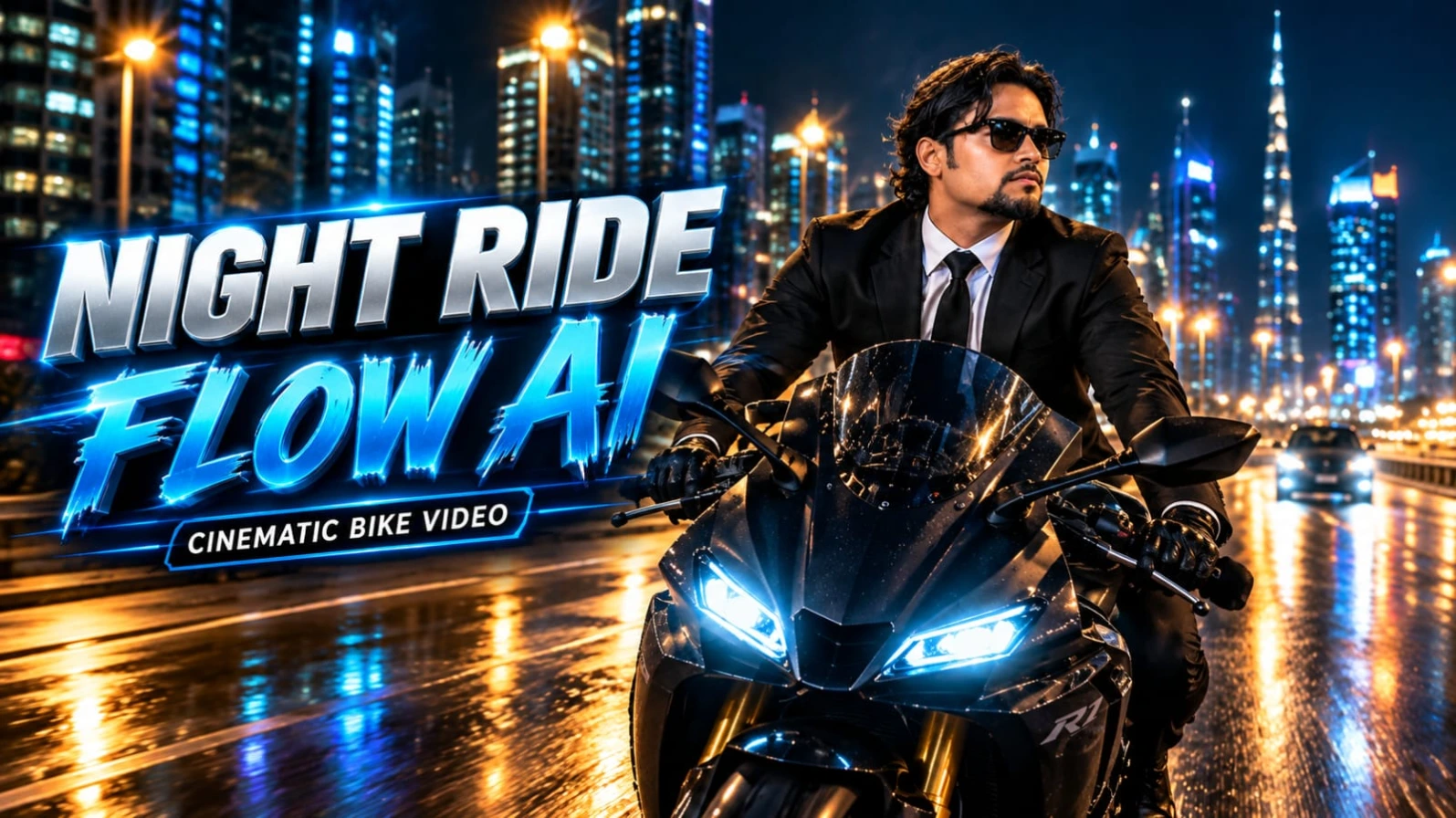
Black Superbike AI Video Prompt ek cinematic AI video concept hai jisme matte black sports superbike, modern city highway aur night-time lighting ka combination use kiya gaya hai. Is concept ka main focus ek stylish South Asian man aur uski superbike ko realistic action-film style mein dikhana hai. Illuminated skyscrapers, neon lights, highway streetlights aur road par natural reflections video ko premium cinematic appearance dete hain.
Character medium wavy dark hair, groomed goatee beard aur black Wayfarer sunglasses ke saath dikhaya gaya hai. Woh tailored black suit jacket, crisp white dress shirt, black necktie, black trousers aur black leather biker gloves pehenta hai. Matte black superbike ke front mein bright twin LED headlights aur rear mein glowing red LED taillights hain.
Video mein multiple camera perspectives use kiye gaye hain. Opening shot mein camera rider ke saamne se backward tracking movement karta hai. Iske baad low-angle side shots motorcycle ki styling aur illuminated city skyline ko highlight karte hain. Final rear-follow shot mein bike night traffic ke beech aage badhti hui dikhayi deti hai.
Yeh concept Instagram Reels, YouTube Shorts aur doosre vertical video platforms ke liye suitable hai. AI-generated footage mein rider ka face, motorcycle ka design aur fast-moving background kabhi-kabhi inconsistent ho sakta hai. Isliye final video mein facial appearance, vehicle proportions aur road movement ko carefully review karna chahiye.
Black Superbike AI Video Kaise Banaye
Step 1: Apni clear character reference photo select karein. Agar tool support karta hai, to use identity reference ke roop mein upload karein.
Step 2: Flow AI ya kisi compatible AI video-generation tool ko open karein.
Step 3: Prompt mein character ka black suit, white shirt, sunglasses aur matte black superbike ki details maintain karein.
Step 4: Prompt07AI.com ke original article se complete Black Superbike AI Video Prompt copy karein aur tool mein paste karein.
Step 5: Front tracking, side tracking aur rear-follow shots generate karein. Agar ek generation mein sabhi angles sahi nahi aate, to clips separately banayein.
Step 6: Motorcycle headlights, red taillights, face consistency aur road reflections check karein.
Step 7: Clips ko video editor mein combine karke final vertical video export karein.
Yeh ek stylized cinematic concept hai. Real motorcycle riding ke dauran helmet aur applicable road-safety rules ka hamesha palan karein.
2. Luxury Rolls-Royce AI Video Prompt | Royal VIP Entry Scene
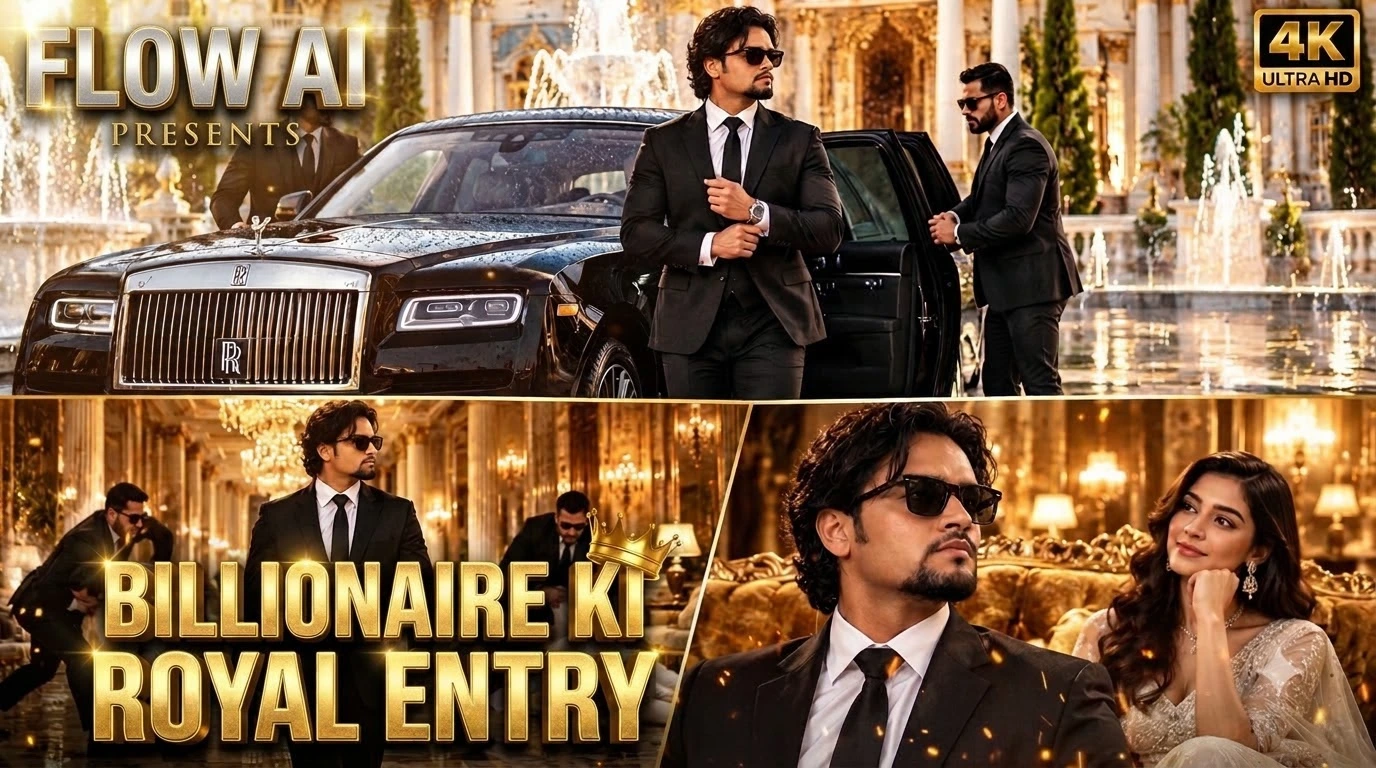
Luxury Rolls-Royce AI Video Prompt ek royal VIP entry concept hai jo luxury car, grand palace architecture, professional bodyguards aur cinematic action ko ek video sequence mein combine karta hai. Is concept ki shuruaat ek black Rolls-Royce ke neoclassical palace courtyard mein arrive hone se hoti hai. White-and-gold marble, water fountains aur wet reflective floor environment ko grand appearance dete hain.
Car ke rukne ke baad do bodyguards rear door open karte hain aur ek stylish South Asian man bahar nikalta hai. Character medium wavy dark hair, groomed goatee aur black Wayfarer sunglasses ke saath dikhaya gaya hai. Uska outfit tailored black suit, crisp white shirt aur black tie hai. Woh apne suit cuffs adjust karta hai aur confident attitude ke saath palace ke andar enter karta hai.
Agla sequence golden chandeliers se illuminated luxurious corridor mein hota hai. Camera character ko forward tracking shot mein follow karta hai, jabki background mein bodyguards do aggressive intruders ko intercept karte hain. Final scene mein man ek golden velvet sofa ke paas se guzarta hai aur white designer gown pehni ek elegant woman use admiring smile ke saath dekhti hai.
Is prompt ki khas baat iska clear beginning, middle aur ending sequence hai. Luxury car arrival, palace interior aur background action milkar movie-trailer jaisa atmosphere create karte hain. Multiple characters aur complex movements ki wajah se AI generation mein body positions ya facial details change ho sakti hain. Separate clips generate karna aur unhe editing app mein combine karna useful ho sakta hai.
Luxury VIP Entry Video Kaise Banaye
Step 1: Character reference photo select karein, agar aap apni appearance video mein use karna chahte hain.
Step 2: Flow AI ya compatible video-generation tool open karein.
Step 3: Prompt07AI.com ke original article se complete Rolls-Royce VIP Entry Prompt copy karein.
Step 4: Prompt paste karein aur black Rolls-Royce, palace courtyard, bodyguards aur character styling ki details maintain karein.
Step 5: Car arrival aur character ke bahar nikalne ka scene generate karein.
Step 6: Golden chandelier corridor aur background action sequence ko generate karein. Complex movement ke liye separate clips use kar sakte hain.
Step 7: Final scene mein white gown pehni woman aur golden velvet sofa ka composition check karein.
Step 8: Sabhi clips ko sequence mein combine karein aur face consistency, car design aur natural movement review karke export karein.
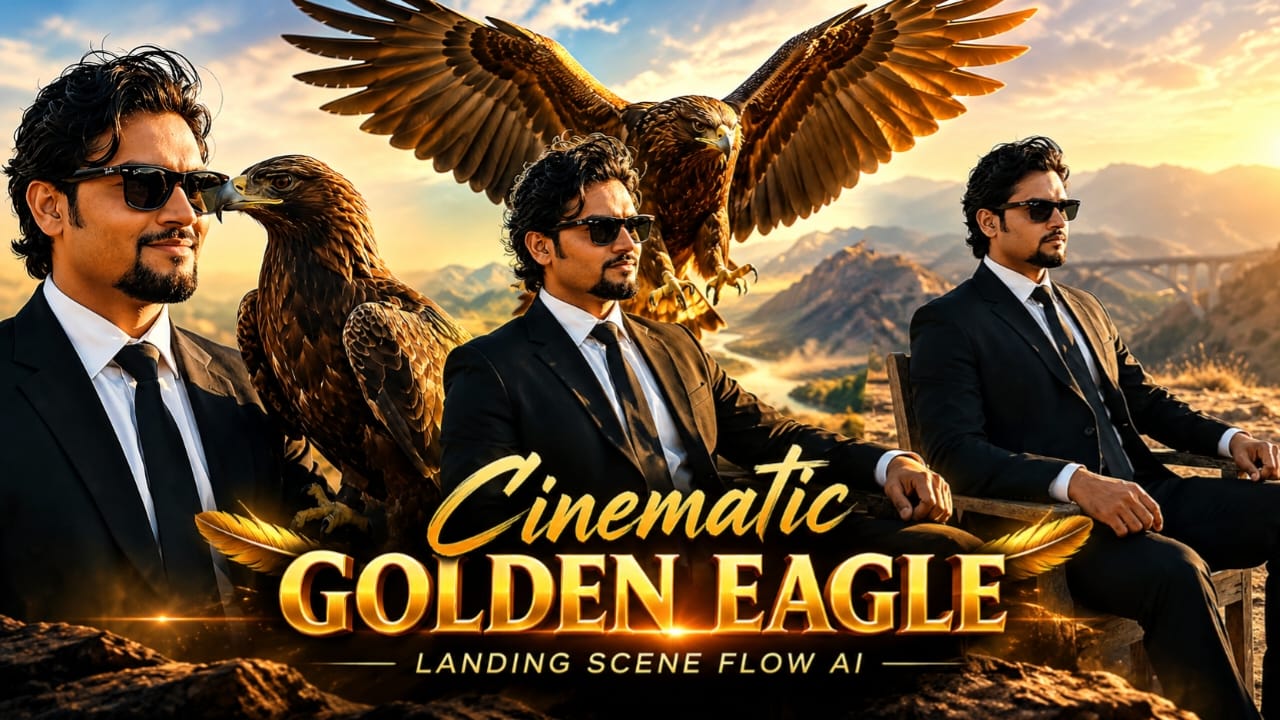
3. Cinematic Golden Eagles Scene | Flow AI Video Prompt
Cinematic Golden Eagles Scene ek AI video concept hai jisme ek stylish South Asian man aur ek magnificent golden eagle ke interaction ko cinematic outdoor environment mein dikhaya gaya hai. Is scene ka central action eagle ka aasman se neeche aana aur man ke extended right forearm par land karna hai. Golden-hour sunlight, dusty hill, distant mountains aur arched viaduct bridge background ko dramatic visual appearance dete hain.
Character wavy black hair, groomed goatee beard aur black Wayfarer sunglasses ke saath dikhaya gaya hai. Woh tailored black suit, crisp white shirt aur black necktie pehenta hai. Man ek weathered wooden chair par relaxed position mein baitha hota hai aur apna right forearm eagle ki landing ke liye extend karta hai.
Eagle wide wingspan ke saath sky se descend karta hai. Landing ke dauran uske wings powerful movements karte hain aur arm par settle hone ke baad woh apna head halka sa turn karta hai. Is action mein bird ki movement, talons ka contact aur character ke arm ki position consistent rehna important hai.
Is concept mein vertical 9:16 composition aur 35mm lens-style perspective use kiya gaya hai. Camera medium shot se start hota hai aur dheere-dheere closer profile view ki taraf move karta hai. Warm sunlight, natural shadows aur halki wind scene ko realistic cinematic feel dene ke liye use hote hain.
AI video generation mein bird aur human ke physical interaction ko accurately render karna challenging ho sakta hai. Eagle ka size, wings aur landing position final output mein badal sakte hain. Isliye generated video ko carefully review karna aur zarurat par landing scene separately generate karna helpful hai.
Golden Eagle AI Video Kaise Banaye
Step 1: Apni clear character reference photo ready karein.
Step 2: Flow AI ya compatible AI video tool open karein.
Step 3: Prompt07AI.com ke original article se Golden Eagle Video Prompt copy karein.
Step 4: Reference photo upload karein aur character ka face, hair, beard aur black suit consistent rakhne ki instruction dein.
Step 5: Prompt mein eagle ke approach, descent aur right forearm par landing ki movement ko clearly maintain karein.
Step 6: 9:16 vertical format select karein, agar available ho.
Step 7: Eagle ke wings, talons, landing position, character ke arm aur lighting ko check karein.
Step 8: Agar landing unnatural lage, to us shot ko separately generate karke editing app mein final video complete karein.
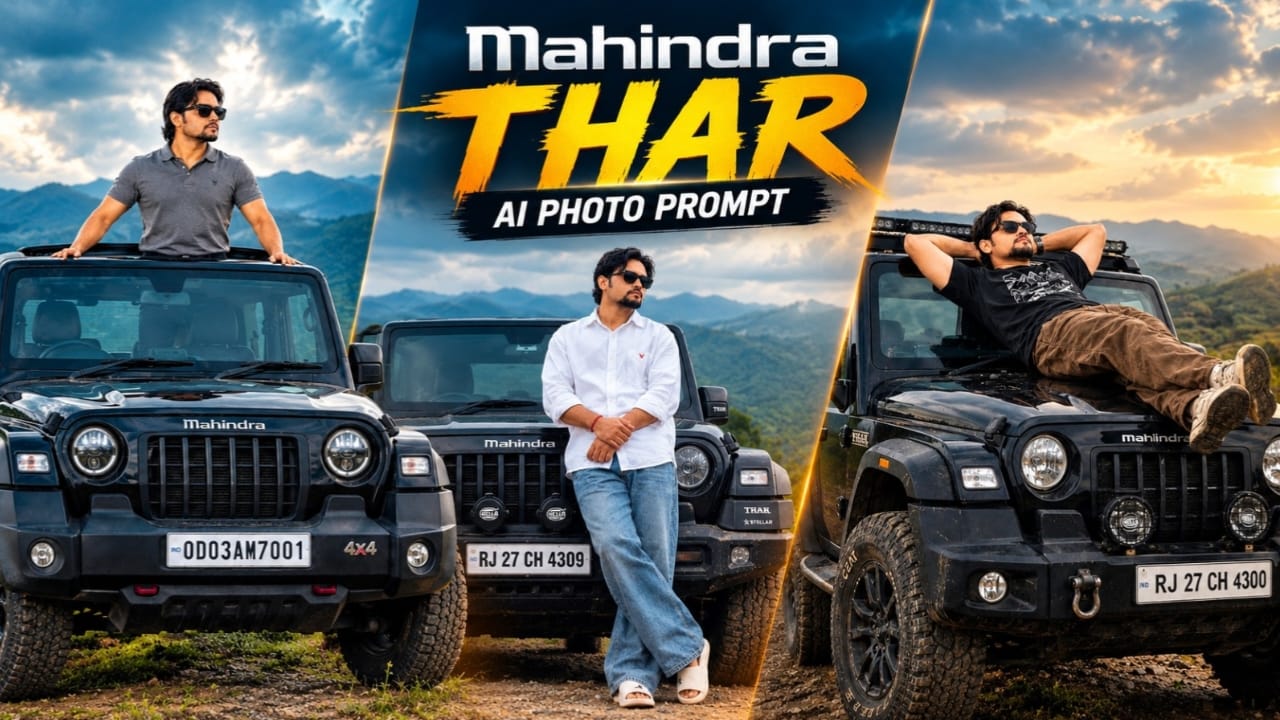
4. Mahindra Thar AI Photo Prompt | Cinematic Black SUV Portrait
Mahindra Thar AI Photo Prompt ek cinematic automotive portrait concept hai jisme ek young South Asian man ko black Mahindra Thar SUV ke bonnet ke paas confident pose mein dikhaya gaya hai. Background mein foggy hills aur overcast sky hai, jo photograph ko muted, moody aur cinematic appearance dete hain. Black SUV aur white oversized shirt ka contrast image ko visually striking banata hai.
Character curly hairstyle, beard aur black sunglasses ke saath dikhaya gaya hai. Woh white oversized shirt, blue baggy jeans, white slides aur red wristband pehenta hai. Shirt par red logo detail bhi hai. Pose mein character vehicle ke bonnet se lean karta hai, legs crossed rakhta hai aur arms clasp karke camera ki taraf dekhta hai.
Vehicle ke important details mein black body, Mahindra logo, Stellar edition badges, auxiliary bumper lights aur number plate RJ 27 CH 4309 shamil hain. Original composition ko recreate karte waqt car ke front grille, bumper, lights aur number plate par special attention dena chahiye, kyunki AI image generators kabhi-kabhi lettering aur vehicle details ko accurately reproduce nahi karte.
Is concept ki lighting soft aur diffused hai. Background ke hills subdued tones mein hain aur cool grey highlights, muted greens aur deep blacks image ko editorial photography jaisa finish dete hain. Prompt ka main objective ek random SUV portrait banana nahi, balki reference image ki composition, outfit aur vehicle details ko closely follow karna hai.
Final result AI tool, reference image quality aur prompt-following capability par depend karega. Isliye image save karne se pehle facial resemblance, body proportions, vehicle details aur number plate carefully check karna useful hai.
Mahindra Thar AI Photo Kaise Banaye
Step 1: Original reference photo ready karein, jisme face, outfit aur black Thar clearly visible ho.
Step 2: ChatGPT ya compatible AI image-editing tool open karein.
Step 3: Reference image upload karein aur original composition aur character identity preserve karne ki instruction dein.
Step 4: Prompt07AI.com ke original article se Mahindra Thar AI Photo Prompt copy karein.
Step 5: Prompt paste karein aur white oversized shirt, blue baggy jeans, white slides aur red wristband ki details maintain karein.
Step 6: Generated image mein Thar ka grille, badges, bumper lights aur number plate check karein.
Step 7: Face, hands, crossed legs aur bonnet ke saath natural body position review karein.
Step 8: Zarurat hone par prompt revise karein aur final image ko apne required format mein save karein.
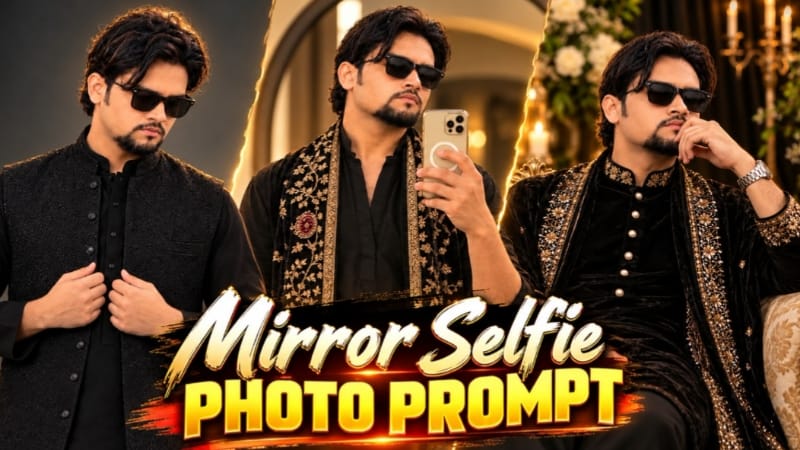
5. Mirror Selfie Photo Prompt | Black Kurta with Golden Embroidery Shawl
Mirror Selfie Photo Prompt ek traditional fashion photography concept hai jisme black kurta, golden embroidered velvet shawl aur black rectangular sunglasses ka combination use kiya gaya hai. Scene ek large round mirror ke saamne set hai, jiske background mein grey-beige wall aur soft natural sunlight dikhayi gayi hai. Cream-gold smartphone mirror selfie composition ka important part hai.
Character black kurta pehenta hai, jiska V-neck front placket aur forearms tak rolled sleeves hain. Dark trousers outfit ko complete karte hain. Sabse distinctive element long black velvet shawl hai, jis par heavy cream-gold floral embroidery, round maroon stone-style medallion motifs aur dono edges par wide embroidered border diya gaya hai.
Composition mein do reference images ka use hota hai. Pehli image scene, pose, outfit aur overall composition guide karti hai. Doosri image facial identity reference ke liye use hoti hai. Character right hand mein cream-gold smartphone hold karta hai, jo chest ke saamne positioned hai. Left arm naturally side par rehta hai aur head halka sa downward tilt hota hai.
Lighting left side se aane wali soft natural sunlight par based hai. Wall par warm golden patch aur face aur outfit par gentle shadows create hote hain. Muted warm colour grading aur deep black fabric embroidery ki details ko highlight karte hain. Is concept ka planned aspect ratio 4:5 vertical hai, jo portrait-oriented social media posts ke liye suitable hai.
AI-generated images mein face, phone, embroidery patterns aur hand positions badal sakte hain. Isliye reference images ko sahi role assign karna aur final output mein facial resemblance aur fabric details carefully check karna important hai.
Mirror Selfie Photo Kaise Banaye
Step 1: Do images ready karein: pehli mirror selfie composition ke liye aur doosri apne face reference ke liye.
Step 2: ChatGPT ya compatible AI image-generation tool open karein.
Step 3: Dono images upload karein aur clearly explain karein ki kaunsi image scene reference hai aur kaunsi face reference.
Step 4: Prompt07AI.com ke original article se Mirror Selfie Photo Prompt copy karein.
Step 5: Prompt paste karein aur black kurta, embroidered velvet shawl, sunglasses aur cream-gold smartphone ki details maintain karein.
Step 6: 4:5 vertical format select karein, agar tool support karta hai.