Mahindra Thar AI Photo Prompt: Cinematic Black SUV Portrait
Introduction
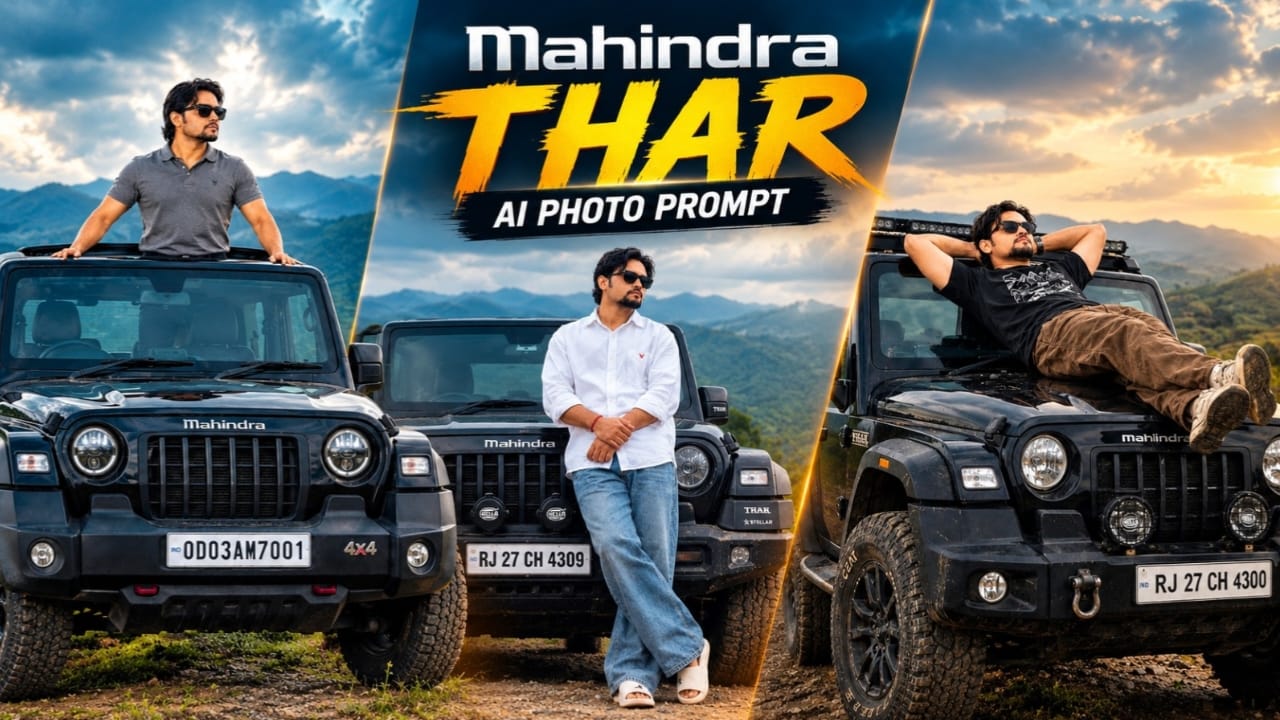
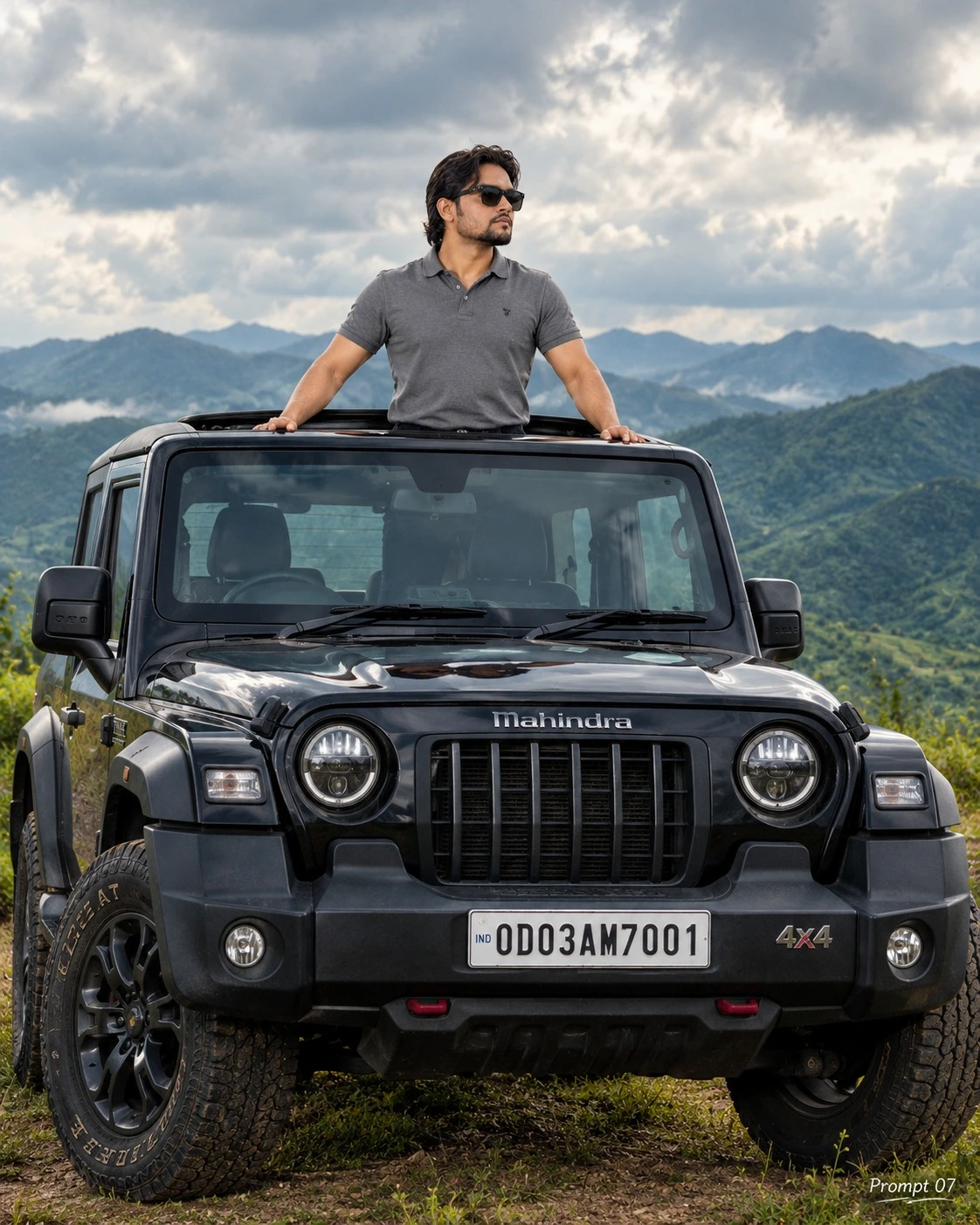
Creating a cinematic car portrait with artificial intelligence is a popular way to experiment with automotive photography, stylish outfits, and dramatic outdoor backgrounds. This Mahindra Thar AI Photo Prompt is designed to recreate a specific photograph featuring a young South Asian man leaning against a black Mahindra Thar SUV in a foggy, mountainous environment.
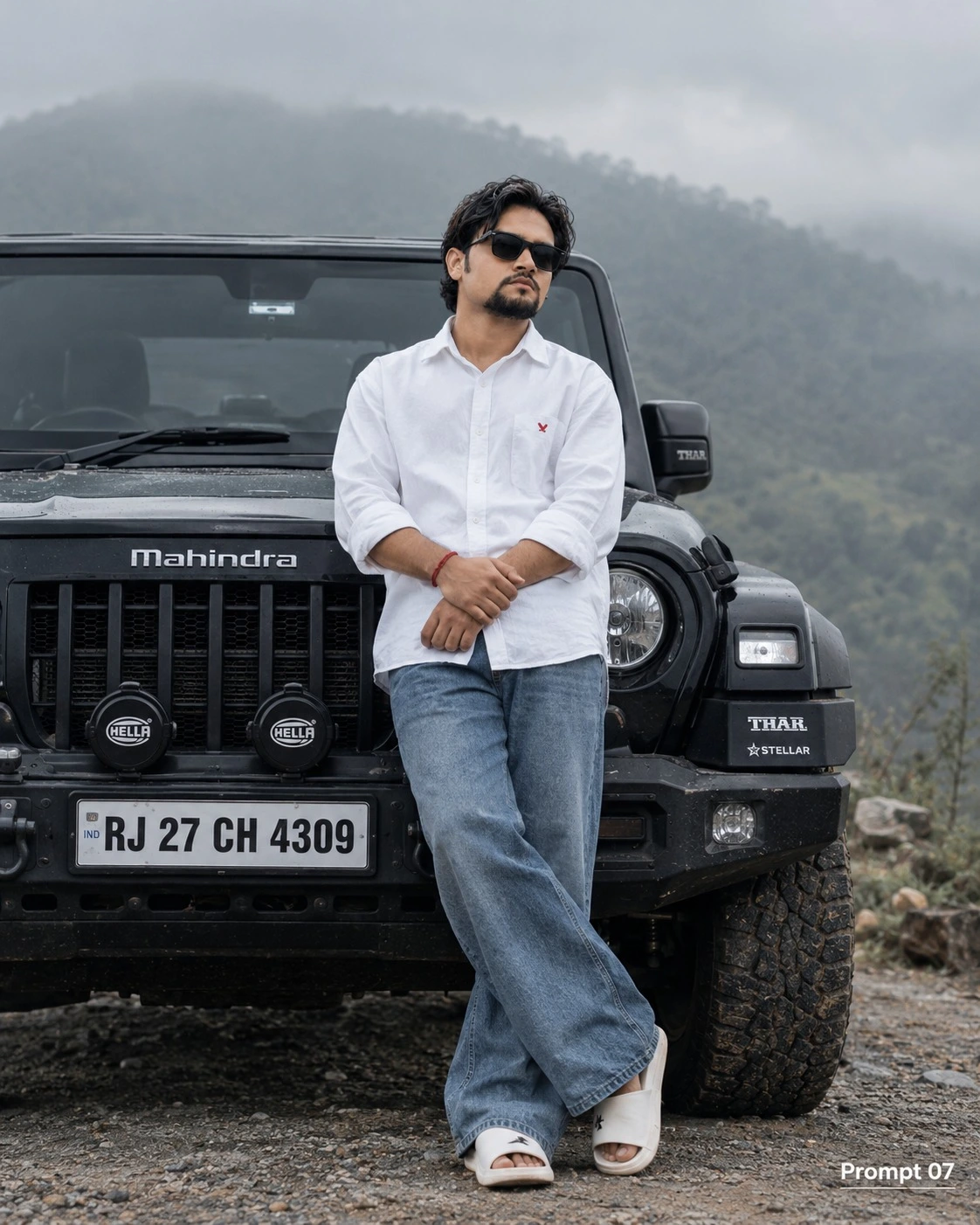
The concept combines casual fashion, a rugged vehicle, an overcast sky, and muted cinematic color grading. The subject wears a white oversized shirt, blue baggy jeans, white slides, black sunglasses, and a red wristband. The black SUV provides a strong visual contrast against the pale sky and desaturated hills.
The prompt also emphasizes facial resemblance, vehicle details, the license plate, and a small watermark reading "Prompt 07" at the bottom-right corner. These elements are important because the goal is to recreate a particular visual composition rather than generate a completely different car portrait.
In this guide, you will learn how the prompt works, how to use a reference image, which details require special attention, and how to improve the final AI-generated photograph.
What Is a Mahindra Thar AI Photo Prompt?
A Mahindra Thar AI Photo Prompt is a detailed instruction that guides an AI image-generation or image-editing tool in creating a photograph centered on the Mahindra Thar SUV.
It describes the subject's appearance, clothing, body position, vehicle design, surroundings, lighting, and image quality. Instead of generating an ordinary portrait beside a random vehicle, the prompt specifies a particular black Mahindra Thar, a particular outfit, and a foggy outdoor environment.
The supplied reference image, identified in the prompt as image_0.png, is intended to guide the recreation. A compatible image-editing tool may use the reference to preserve the original composition and visual details.
The final result still depends on the selected AI tool, the reference image's quality, and the tool's ability to reproduce complex details accurately.
Main Features of the Mahindra Thar Portrait
1. Facial Appearance and Identity
The prompt requests the same young South Asian man shown in image_0.png. It specifically emphasizes preserving his facial features, apparent age, curly hairstyle, beard, and black sunglasses.
When using a reference image, choose a tool that supports reference-based image editing or identity guidance. Upload the original photograph and explain that the subject's appearance should remain consistent while the surrounding image is recreated.
AI tools can change facial proportions or facial hair during generation. Inspect the final image carefully, particularly around the eyes, jawline, beard, and hairline. Exact identity preservation cannot be guaranteed by text instructions alone.
2. The White Oversized Shirt and Blue Baggy Jeans
The outfit is an essential part of this concept. The subject wears a white oversized shirt with a red logo detail, blue baggy jeans, white slides, and a visible red wristband.
The oversized shirt creates a relaxed streetwear appearance, while the loose blue jeans balance the outfit. The white footwear complements the shirt and contrasts with the dark vehicle.
The prompt requests the same outfit as the reference photograph, so avoid changing the shirt color, replacing the jeans with fitted trousers, or introducing additional accessories.
Pay attention to the red logo detail and wristband. These small elements can easily be altered or omitted by an AI generator, especially when the reference image is low resolution.
3. Black Mahindra Thar SUV
The vehicle is the second major subject of the photograph. The man stands and leans against the bonnet of a black Mahindra Thar, creating a confident automotive-lifestyle composition.
The prompt emphasizes several vehicle details, including the Mahindra logo, Stellar edition badges, auxiliary bumper lights, and the license plate reading RJ 27 CH 4309.
These features help distinguish the requested vehicle from a generic black SUV. If the exact model appearance matters, use a clear reference photograph showing the front of the vehicle, its grille, bumper, lights, badges, and number plate.
AI-generated vehicles can contain inconsistent lettering, misplaced badges, or altered bumper details. Carefully compare these areas with the reference image before accepting the result.
4. Original Pose and Body Position
The requested pose is simple but specific. The subject stands while leaning against the vehicle's bonnet, with his legs crossed and arms clasped. He looks toward the camera.
This posture creates a relaxed, confident appearance that suits automotive fashion photography.
When generating the image, preserve the relationship between the person's body and the bonnet. The subject should appear to rest naturally against the vehicle rather than float in front of it or intersect unnaturally with the bodywork.
Check the position of the crossed legs, clasped arms, hands, and shoulders. Natural proportions and believable contact with the vehicle help improve realism.
Background and Atmospheric Mood
The background consists of hills beneath an overcast, foggy sky. The subdued environment creates a moody atmosphere and separates the scene from bright, sunny automotive photography.
Soft mist and muted hills also provide visual depth without drawing too much attention away from the man and the SUV.
The prompt asks for the same background as the reference. Therefore, avoid adding unrelated buildings, city streets, other vehicles, crowds, or dramatic sunsets.
If you are generating a similar scene without an original background reference, describe the hills, fog, and cloudy sky clearly. However, the result may resemble the intended atmosphere without duplicating the original location exactly.
Lighting and Cinematic Color Grading
Soft, diffused lighting is central to this image. An overcast sky provides gentle illumination across the subject's face, white shirt, jeans, and the black SUV.
The color grading is desaturated and moody, with subdued greens, cool gray highlights, and deep black tones. This treatment gives the photograph a cinematic editorial appearance.
Avoid excessive saturation, harsh sunlight, artificial orange highlights, or strong HDR effects. Such changes may conflict with the requested atmosphere.
The subject and vehicle should remain sharply defined against the softer background. Consistent lighting and realistic shadows are especially important where the man touches the bonnet.
Camera Composition and Image Quality
The prompt requests a professional cinematic photograph with 8K-style detail. The subject and the black Mahindra Thar should remain the main visual focus, while the foggy hills provide a subdued backdrop.
Keep the composition close to the original reference. The position of the subject, the visible portion of the SUV, and the amount of background space should remain consistent.
A high-quality output setting may help retain clothing textures, hair strands, vehicle details, and natural skin texture. However, describing an image as 8K does not guarantee that the generated file will have native 8K resolution. Actual dimensions depend on the AI tool.
The final photograph should look realistic rather than artificially sharpened. Review the face, shirt fabric, vehicle edges, wheels, bumper, and number plate at a closer zoom.
How to Use the Reference Image
Start with the original photograph named image_0.png, or upload the equivalent reference image from your device. Use an AI tool that supports image-to-image editing or reference-guided generation.
The reference should provide the visual guidance for the subject's identity, pose, outfit, vehicle, and environment. If the tool supports multiple references, you may use additional clear photographs of the same vehicle to help with specific automotive details.
Make sure the images are relevant and consistent. An additional photograph showing a different vehicle version or a different bumper configuration could confuse the generator.
For the strongest practical result, make focused corrections rather than changing the entire scene whenever one detail is incorrect.
Adding the Prompt 07 Watermark
The prompt requests clean watermark text reading "Prompt 07" at the bottom-right corner of the final image.
This text should be discreet and professional, positioned away from the subject and important vehicle details. It should remain readable without becoming the main attraction.
AI image generators do not always render text accurately. If the watermark appears misspelled, distorted, or poorly positioned, add it afterward using a photo editor that supports text overlays. This gives you better control over font, size, placement, and contrast.
Common Mistakes to Avoid
Changing the vehicle: Clearly identify the black Mahindra Thar and use a suitable reference photograph.
Incorrect number plate: Inspect the requested text RJ 27 CH 4309 and correct it manually if the AI changes the characters.
Changing the outfit: Preserve the white oversized shirt, red logo detail, blue baggy jeans, white slides, and red wristband.
Unnatural body position: Check the crossed legs, clasped arms, and contact between the subject and bonnet.
Overly bright background: Maintain the foggy sky, muted hills, and subdued color grading.
Distorted watermark: Add "Prompt 07" using a text editor if the AI cannot render it cleanly.
Frequently Asked Questions
Can I use my own face with this prompt?
Yes. Use a compatible reference-based editing tool and upload a clear face photograph. The degree of facial resemblance depends on the tool and reference quality.
Can the AI reproduce the exact Mahindra Thar?
It can attempt to recreate the vehicle using a reference image, but exact reproduction of every badge, light, and body detail is not guaranteed.
Can I preserve the license plate RJ 27 CH 4309?
Include the exact plate text in the prompt and check the result. If the generated characters are incorrect, correct them with an image editor before publishing.
Why is the watermark sometimes incorrect?
AI models can struggle with precise lettering. Adding the watermark separately in a photo editor is often a more reliable method.
Does the prompt guarantee 8K quality?
No. The actual resolution depends on the image-generation service and its export settings.
Conclusion
The Mahindra Thar AI Photo Prompt is designed for a cinematic automotive portrait featuring a young South Asian man leaning against a black Mahindra Thar in a foggy hilly environment. Its defining details include the white oversized shirt, blue baggy jeans, white slides, black sunglasses, red wristband, specific vehicle features, and the "Prompt 07" watermark.
For a convincing result, begin with a clear reference image, preserve the original pose and outfit, carefully inspect the vehicle details, and verify the license plate and watermark. With a compatible AI tool and careful refinement, you can create a polished automotive-style portrait suitable for personal creative projects and social media.

Kaise Banaye
Mahindra Thar AI Photo Kaise Banaye
Agar aap black Mahindra Thar ke saath cinematic portrait banana chahte hain, jisme white oversized shirt, blue baggy jeans, black sunglasses aur foggy hills ka background ho, to neeche diye gaye steps follow karein.
Is tutorial mein reference image upload karne, prompt use karne, vehicle details check karne aur final image export karne ka process samjhaya gaya hai.
Step 1: Compatible AI Photo Editing Tool Select Karein
Sabse pehle aisa AI image-generation ya photo-editing tool open karein jo reference images aur detailed text prompts support karta ho.
Agar aap original photograph ko closely recreate karna chahte hain, to image-to-image editing ya reference-guided generation support karne wala tool choose karein. Available features tool ke hisaab se alag ho sakte hain.
Step 2: Original Reference Image Upload Karein
Apne device se image_0.png ya us original photograph ko select karein jise aap recreate karna chahte hain.
Upload karne se pehle check karein ki subject ka face, black Mahindra Thar, outfit aur vehicle ke front details clearly visible hain.
Agar reference image mein number plate ya badges bahut chhote hain, to additional clear vehicle reference image helpful ho sakti hai, agar tool multiple references support karta ho.
Step 3: Face Reference Prepare Karein
Agar aap original subject ki jagah apna face use karna chahte hain, to ek clear face photograph upload karein, provided that your selected tool supports this workflow.
Natural lighting wali image select karein jisme facial features clearly visible hon. Prompt mein specify karein ki face reference identity ke liye hai aur original photograph scene, pose, clothing aur vehicle composition ke liye hai.
Agar aap original subject ko hi preserve karna chahte hain, to original image ko primary reference ke roop mein use karein.
Step 4: Complete Prompt Copy Karein
Is article ke Discussion section mein diya gaya complete Mahindra Thar AI Photo Prompt copy karein.
Prompt box mein paste karein. Ismein facial features, curly hairstyle, beard, black sunglasses, white oversized shirt, red logo detail, blue baggy jeans, white slides, red wristband aur vehicle specifications ki details hain.
Prompt ko bina zarurat short na karein, kyunki chhoti details bhi final image ke appearance ko affect kar sakti hain.
Step 5: Vehicle Details Carefully Specify Karein
Prompt mein black Mahindra Thar, Mahindra logo, Stellar edition badges, bumper auxiliary lights aur license plate RJ 27 CH 4309 ka mention hai.
In details ko reference image ke saath compare karein. Agar aapke paas vehicle ki clear photograph hai, to use additional reference ke roop mein add karein, agar supported ho.
AI vehicle badges aur number plate ke characters galat bana sakta hai. Isliye sirf prompt par depend na karein; final result ko inspect karna zaroori hai.
Step 6: Lighting Aur Composition Settings Check Karein
Prompt mein overcast sky, foggy hills, soft diffused lighting aur desaturated cinematic color grading specify ki gayi hai.
Agar aspect ratio select karne ka option available hai, to original reference ke dimensions ke according setting choose karein. Agar original image ka ratio pata nahi hai, to reference ko follow karne wali setting use karein, jab available ho.
Subject aur SUV sharp hone chahiye, jabki distant hills comparatively soft rehni chahiye.
Step 7: Image Generate Karein
Saari reference images aur prompt ko check karne ke baad Generate, Create ya Edit jaise available option par click karein.
Generation complete hone ka wait karein. Result mein subject ka pose, crossed legs, clasped arms, white shirt, blue jeans aur black SUV ko verify karein.
Agar output original composition se alag hai, to prompt mein specific correction add karein ya available editing controls use karein.
Step 8: Face, Outfit Aur Pose Review Karein
Generated image ko original reference ke saath compare karein.
Face, curly hairstyle, beard aur sunglasses check karein. White oversized shirt par red logo detail aur wrist par red band visible hona chahiye.
Crossed legs aur vehicle bonnet ke saath body contact natural lagna chahiye. Hands, arms aur footwear mein distortions hon to image ko regenerate karein ya supported editing tool se corrections karein.
Step 9: License Plate Aur Watermark Correct Karein
Number plate par RJ 27 CH 4309 likha hona chahiye. AI-generated text mein mistakes ho sakti hain, isliye characters ko carefully verify karein.
Image ke bottom-right corner mein "Prompt 07" watermark add karein. Agar AI text ko properly render nahi karta, to photo editor ke text feature ka use karein. Isse font, size, alignment aur placement par better control milega.
Step 10: Final Image Export Karein
Jab image satisfactory ho jaye, to available Download, Save ya Export option se file save karein.
Agar high-resolution export ya upscaling available ho, to apne use ke according choose karein. Prompt mein 8K likhne se actual image automatically 8K nahi ban jaati.
Final image ko zoom karke face, vehicle body, badges, number plate, clothing aur watermark inspect karein. Social media par publish karne se pehle ensure karein ki composition clean aur professional dikhti hai.
Common Problems Aur Solutions
Agar face change ho raha hai, to clearer reference use karein aur identity instructions refine karein.
Agar vehicle details incorrect hain, to clearer vehicle reference add karein ya image editor se corrections karein.
Agar number plate galat hai, to us text ko manually correct karein.
Agar watermark distorted hai, to use separate text layer ke through add karein.
Final Tips
Is concept mein facial resemblance, exact outfit, black Mahindra Thar, foggy hills aur correct watermark sabse important hain. Ek samay par ek ya do issues fix karein aur har version ko reference ke saath compare karein.
Is process se aap apne desired cinematic automotive portrait ke kareeb result create kar sakte hain. Final accuracy AI tool, reference images aur editing capabilities par depend karegi.